
Start here
Set up a unit from start to finish
The recommended setup order, with the dependencies and checks that prevent cleanup later.
Guide at a glance
How to use this guide
Start with
Read this before making broad setup decisions. The order and relationships matter more than memorizing individual screens.
By the end
You should be able to explain how the unit, roster, structure, accounts, roles, and workflows fit together.
Before you begin
Use a school-controlled email address for the first instructor account. Gather the unit name, program or service, current organization chart, and a clean roster before entering records.
Every instructor should have an individual account. Shared credentials erase the value of the change history and make recovery harder when staff change.
- Confirm the program and the terminology the unit uses.
- Decide which instructors need access on day one.
- Identify duplicate or departed Cadets in the source roster.
- List the positions that need delegated access.
Recommended setup order
- 1Create the first instructor account and confirm you can sign in.
- 2Add the remaining instructors with their own accounts.
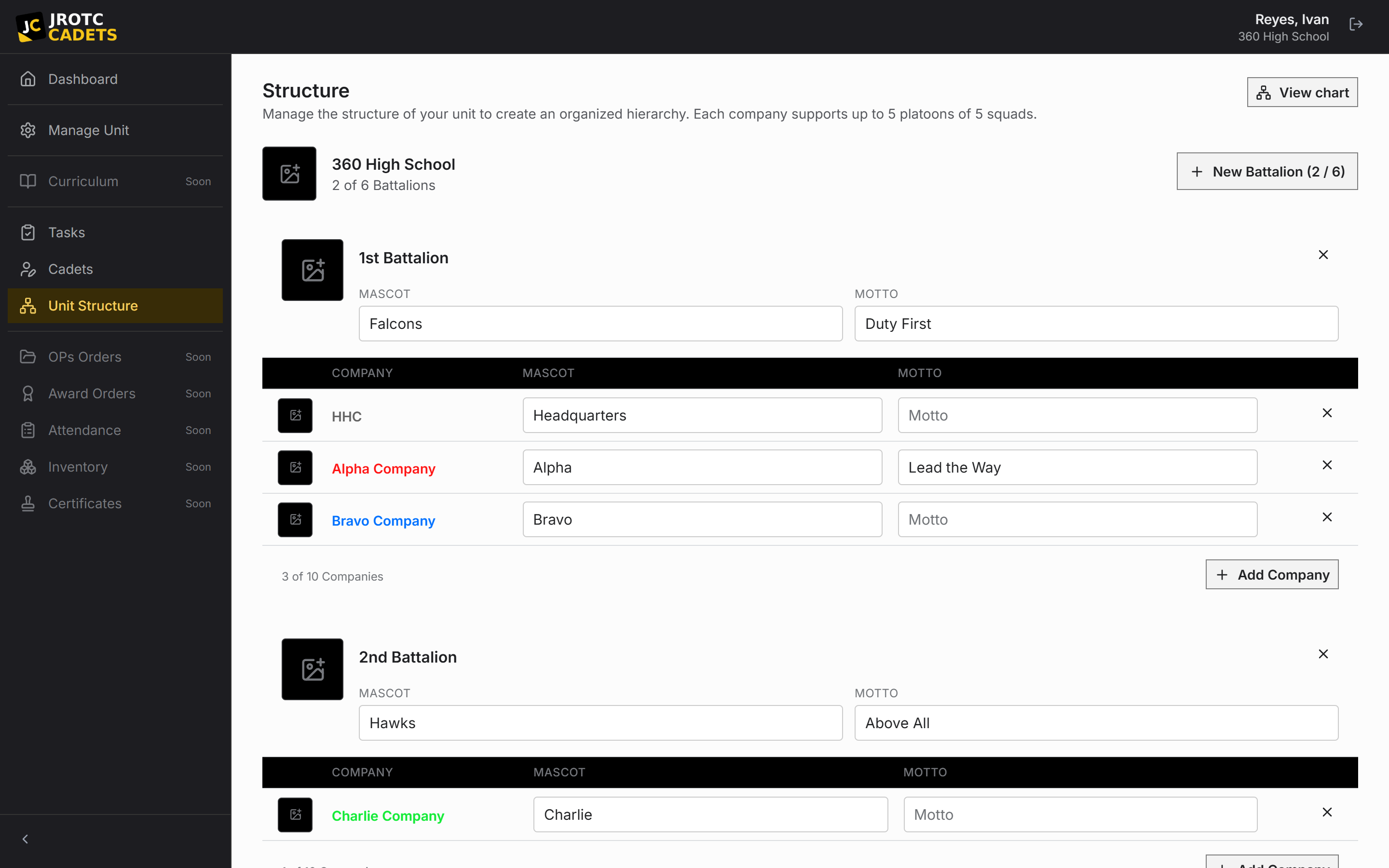
- 3Build the unit structure from the highest formation down.
- 4Create one roster record per current Cadet and place each record in the structure.
- 5Define staff and command positions, including the permissions each position needs.
- 6Invite Cadets to register, then approve and link each account to the existing record.
- 7Assign Cadets to positions and test the access of one representative staff role.
- 8Create a small tasking and run one proposed change through approval before wider rollout.
Validate before rollout
Use a small representative sample before onboarding the whole unit. Check one instructor, one ordinary Cadet, and one staff Cadet. Each should see a different, intentional view.
If a staff Cadet can see too little, check their position assignment and the position’s grants. If they can see too much, remove the unnecessary grant from the position before assigning anyone else.
Moving from a spreadsheet
There is no self-serve bulk roster import. For a large unit, contact support before typing records manually. Cadet self-registration and the approval queue may reduce the amount of instructor data entry.
Do not create a second record when a registering Cadet does not immediately appear on the roster. Registration and roster linking are separate steps.
For a large migration, email support@allcadets.com with the school, unit size, source format, and target start date.
Practical playbook
Checks, outcomes, and troubleshooting
Use this section when you are carrying out the task now, or when the ordinary path did not produce the expected result.
Before you act
- Choose one instructor to coordinate the initial setup and keep the source roster unchanged while the unit is being checked.
- Have the current organization chart, school year, branch terminology, active Cadet roster, and intended staff positions available.
- Use individual school-controlled instructor accounts; decide who will retain access when staff change.
Success looks like
- An instructor, an ordinary Cadet, and a staff Cadet can each sign in and see the correct role-specific view.
- Every active Cadet has one linked record, a valid placement, and no accidental staff access.
- One sample tasking and one proposed record change complete their full workflow before unit-wide rollout.
| What you see | Likely cause | What to do next |
|---|---|---|
| Cadets appear in the wrong formation | The roster was entered before the structure was final. | Finish the target structure, move a small sample, verify parent formations, then move the rest. |
| A staff Cadet sees too little | Their position is missing a grant or the Cadet is not assigned to the intended position. | Check the position assignment first, then inspect only the grants required for that duty. |
| A Cadet has two identities | A registration was treated as a new roster record instead of linked to the existing one. | Stop editing both records and ask support to identify which record carries the account and history. |
When to contact support. For a large migration, send support the school, approximate roster size, source file format, target launch date, and the setup step already reached.
Key terms in this guide
- Cadet record
- The unit’s authoritative operational record for one Cadet; it is separate from the account used to sign in.
- Registration
- The request to create or connect a sign-in identity. It is not itself an active roster record.
- Position
- A named unit duty that can carry permissions, scope, an assigned Cadet, and continuing work.
- Change request
- A proposed official change that keeps the current and proposed values available for review.